
Editing in Depth#
Let us take a look at the realtime editor and editing features.
Text manipulation
MarkText shows you formatted text in realtime, where you can simply write and edit text, as well as use markdown syntax. To improve your writing efficiency there are a lot of key bindings for better text manipulation. In the preferences you can control the editor settings such as font settings, autocompletion and line width.
Selections
You can select text with your mouse cursor, double click on a word or use the keyboard Shift+Arrow Keys.
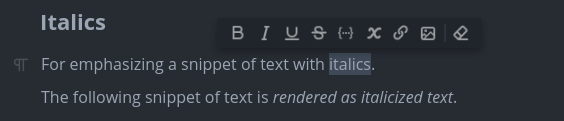
Format overlay:
The format overlay is a pop-up that automatically appears when you're selecting text. You can easily transform text and inline markdown, and remove formatting.
- Bold
- Italics
- Underline
- Strikethrough
- Highlight (when enabled in Markdown preferences)
- Text and background colors
- Inline code
- Inline math formulas
- Create link
- Create image
- Remove formatting
Further overlays are available for emojis, links, images and tables.
Deleting
Do you want to delete headings, lists or tables? Just select the area and press backspace.
Brackets and quotes autocompletion
You can configure MarkText to autocomplete markdown syntax, brackets and quotes. These options are enabled by default. Pair insertion depends on the cursor context, such as surrounding characters and whether the cursor is inside code or math.
Links
Links are displayed by default as normal text, but if you click on a link it is shown as a markdown link with title and URL, as shown below:

Formatting
MarkText parses and exports Markdown using Muya, with CommonMark/GFM syntax and optional extensions controlled by preferences. Some settings, such as list indentation, can be controlled via preferences.
Editing features
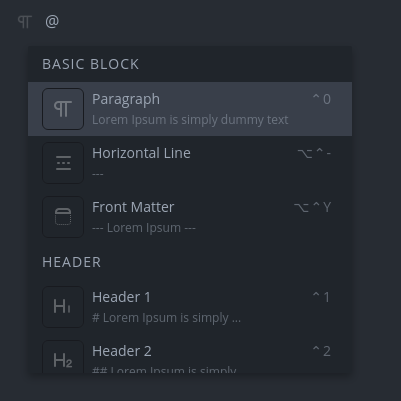
Quick insert
When you start a new line, just type / to access a pop-up with all available markdown features. At this point, you can choose an entry and the line is transformed into the selected attribute.
Line transformer
You can transform a line into another type by clicking on the highlighted icon in the image below and select Turn Into. Furthermore, you can duplicate the selected line, create a paragraph after the selected block or delete the line.
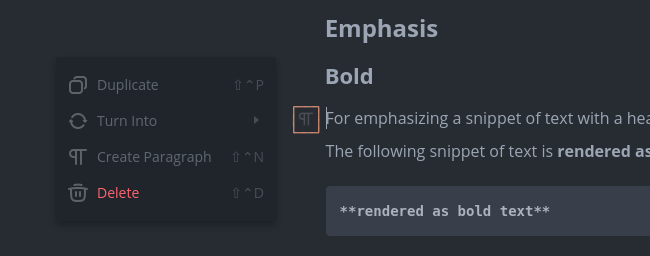
Table tools
It's sometimes hard to write and manage tables in markdown. In MarkText you can press CmdOrCtrl+Shift+T to get a table dialog and create a table with variable row and column count. Both row and column count can be changed via the table tools (first icon above the table) later if necessary. You can apply inline formatting in a table cell and align the text via table tools at the top of the table.
Insert and delete rows and columns:
You can insert or delete a new row or column by clicking on an existing cell and clicking on the menu on the right side for rows or bottom for columns.
Move table cells:
You can simply move a row or column by clicking on the cell menu (like above) and dragging it by holding your left mouse button like this:
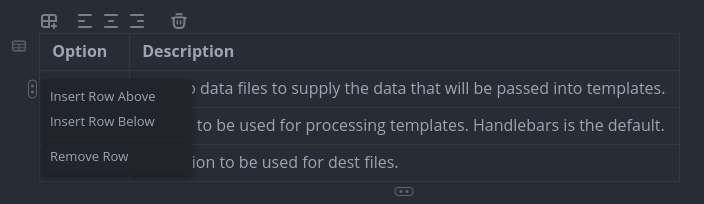
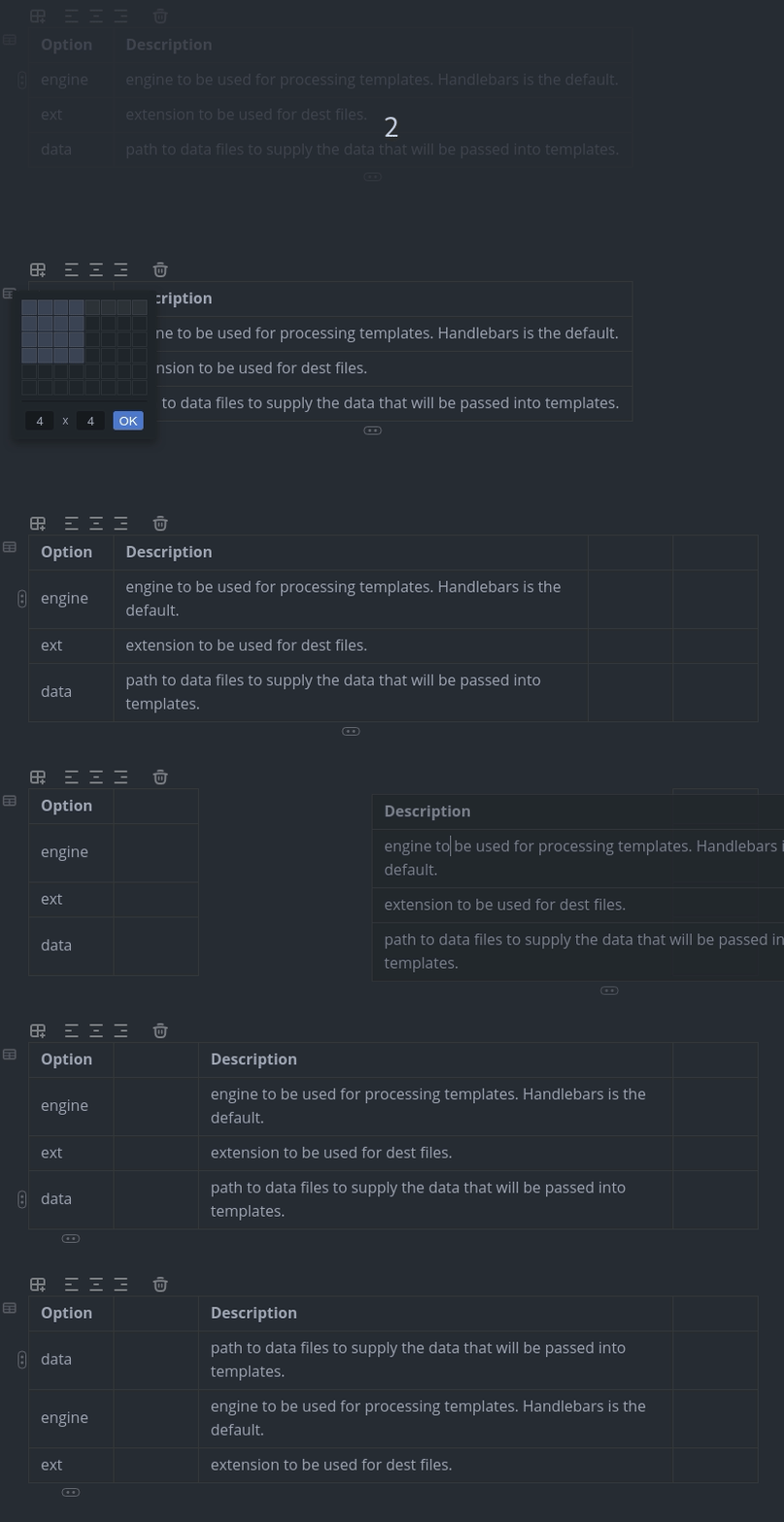
Image tools
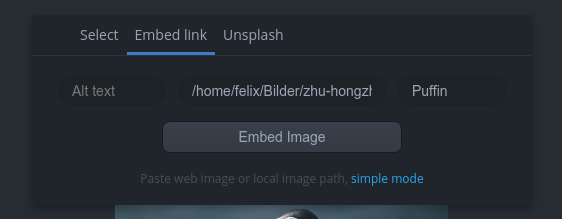
MarkText provides an image viewer and a pop-up to select and label images. You can resize images using the image handles; changes are applied in realtime. By clicking on an image or writing ![]() a pop-up automatically appears that allows you to select an image from disk, or paste a path or URL. Images can be automatically uploaded to cloud, or copied into a configured local folder. Even pasting images that are not located on disk is supported and these images are stored in the background. In addition, you can control the image alignment whether inline, left, centered or right.

Emoji picker
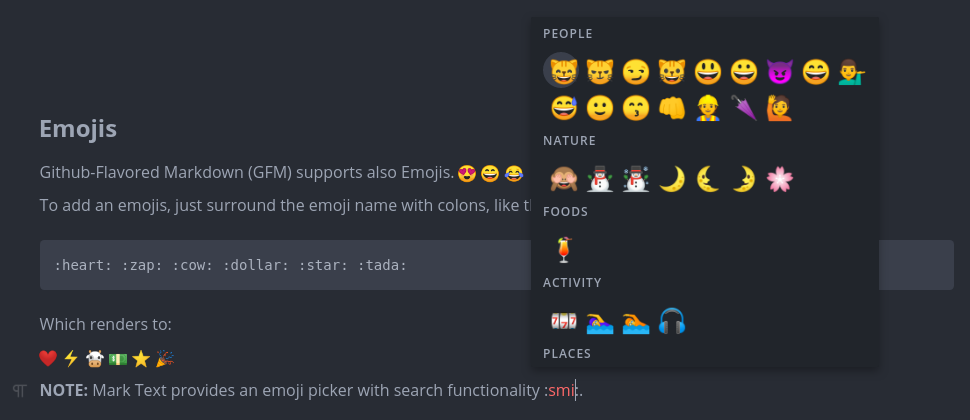
Instantly add emojis to your markdown document without long searches. While typing, the application automatically refreshes the list of available emojis.
Focus mode
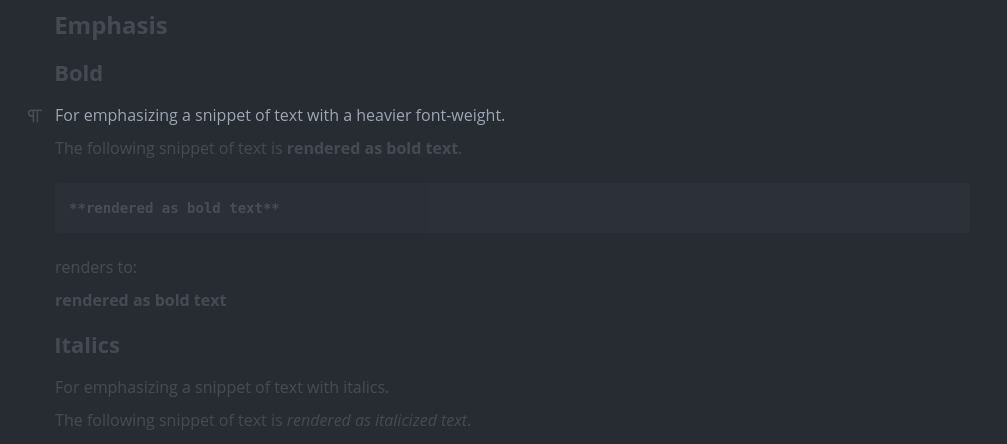
The focus mode will help you to focus on the currently line only by fading out other lines. To activate the focus mode, simply press CmdOrCtrl+Shift+J.
Typewriter mode
In typewriter mode, the cursor is always keep in the middle of the editor.
File encoding
MarkText tries to automatically detect the encoding and byte-order mark (BOM) of a file upon opening it. New documents use the configured default encoding (UTF-8 by default). Opening an existing file first checks for UTF-8/UTF-16 byte-order marks. If automatic guessing is disabled, files without a recognized BOM are decoded as UTF-8; with guessing enabled, valid UTF-8 is preferred before trying the legacy-encoding detector. The currently used encoding can be shown and changed via command palette.
Line endings
MarkText detects LF and CRLF line endings when loading files and uses LF internally. Change the selected save line ending through the command palette.
Find and replace
Inside the editor:
To quickly find a keyword in your document press CmdOrCtrl+F to open the search pop-up. Now you can search for text or replace the given keyword.
Search in opened folder:
Open find in files from the sidebar or press CmdOrCtrl+Shift+F. Enter a keyword and choose search options such as regular expressions and case matching. Search respects the exclusions, ignore-file, hidden-file and size settings documented in Preferences.
In the 0.24.0 development version, search covers all available sidebar folder roots. Unavailable roots are excluded until they can be reopened.
Headings and document navigation
Since 0.23.0, headings in the WYSIWYG editor have a fold control. Click it to hide the section beneath the heading, including deeper headings, up to the next heading of the same or a higher level. Click again to expand it. Folding changes the view only: it does not remove text from saved Markdown or exports.
The independent document outline lists headings for navigation. Toggle its expanded state through the View menu or CmdOrCtrl+K. It docks to either side of the editor and supports resizing; when collapsed, hover its icon for a floating preview. See Basics for layout controls, Reading Mode and document statistics.