Basics#
Getting started
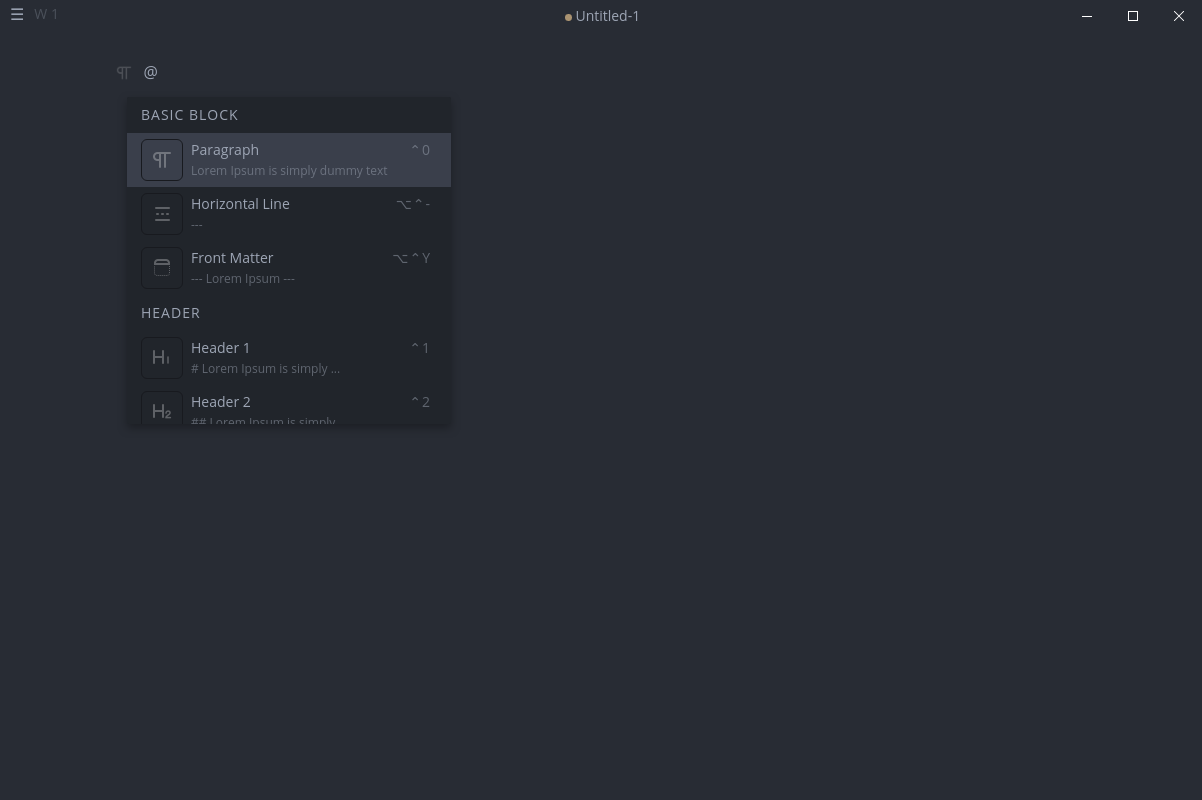
MarkText is a realtime preview editor for markdown with various markdown extensions. You can simply write and edit text and MarkText hides all unnecessary syntax elements. You can see key bindings or command palette (CmdOrCtrl+Shift+P) for all available commands or start a new line and type / to get an overlay with available text elements. MarkText provides a minimal and simple interface and in the next sections you can learn more about the interface and features.
Interface
Toggle sidebar
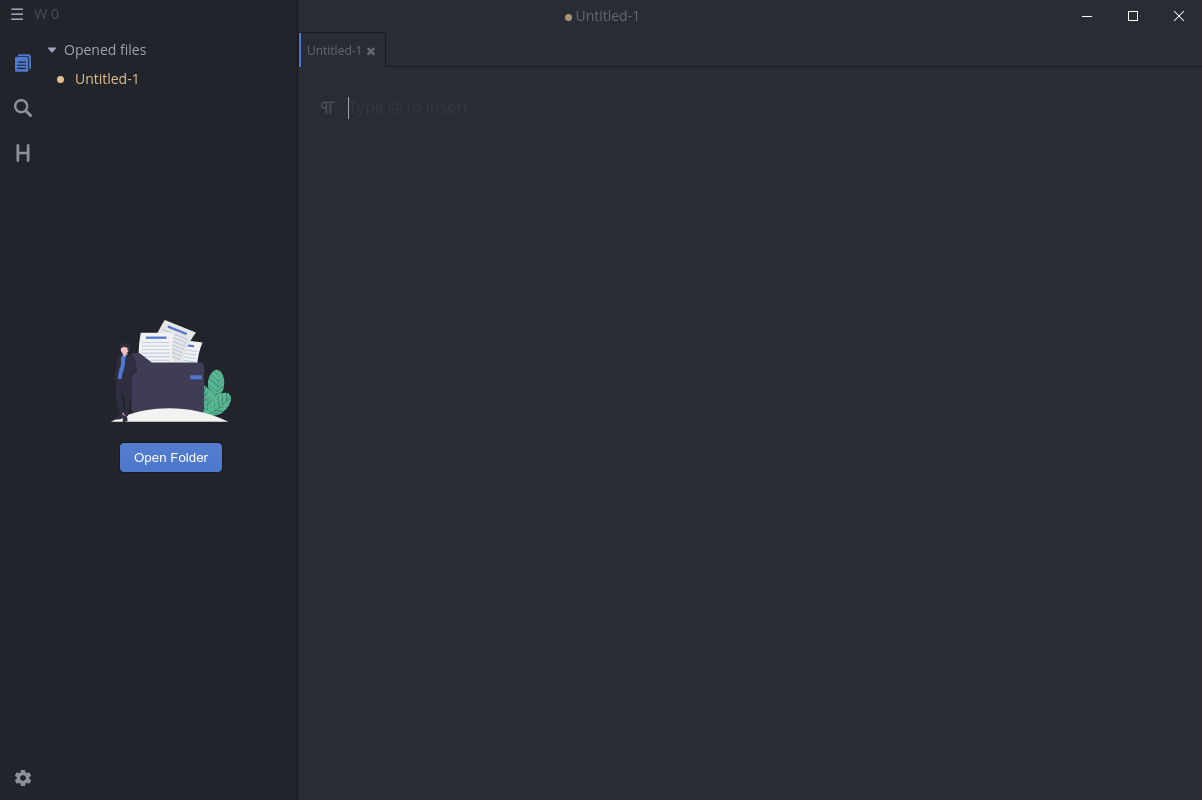
Toggle the sidebar with CmdOrCtrl+J. It contains the filesystem explorer and find-in-files search. The file tree also has a collapsible Opened Files section, controlled by the openedFilesInSidebar preference.
The document outline is independent of the sidebar. Use View → Show Table of Contents or CmdOrCtrl+K to expand or collapse it. When expanded, it occupies a separate column even in narrow windows. Choose its left or right position in Preferences → General → Sidebar, and drag the divider beside the editor to resize it. If the columns cannot fit, scroll the workspace horizontally to keep the document readable. When collapsed, hover or focus its icon to preview the outline in a floating panel. Documents without headings show an empty state in the outline.
Toggle tabs
MarkText can be used as a single editor but opens all files in a separate tab. Tabs can be shown or hidden through the View menu and reordered by drag and drop. The shortcut is Option+Command+B on macOS and Ctrl+Shift+B on Linux and Windows.
Want to use tabs without showing them?
You can hide tabs and use key bindings such as Ctrl+Tab to cycle through tabs or the sidebar opened files panel.
Switch between editor modes
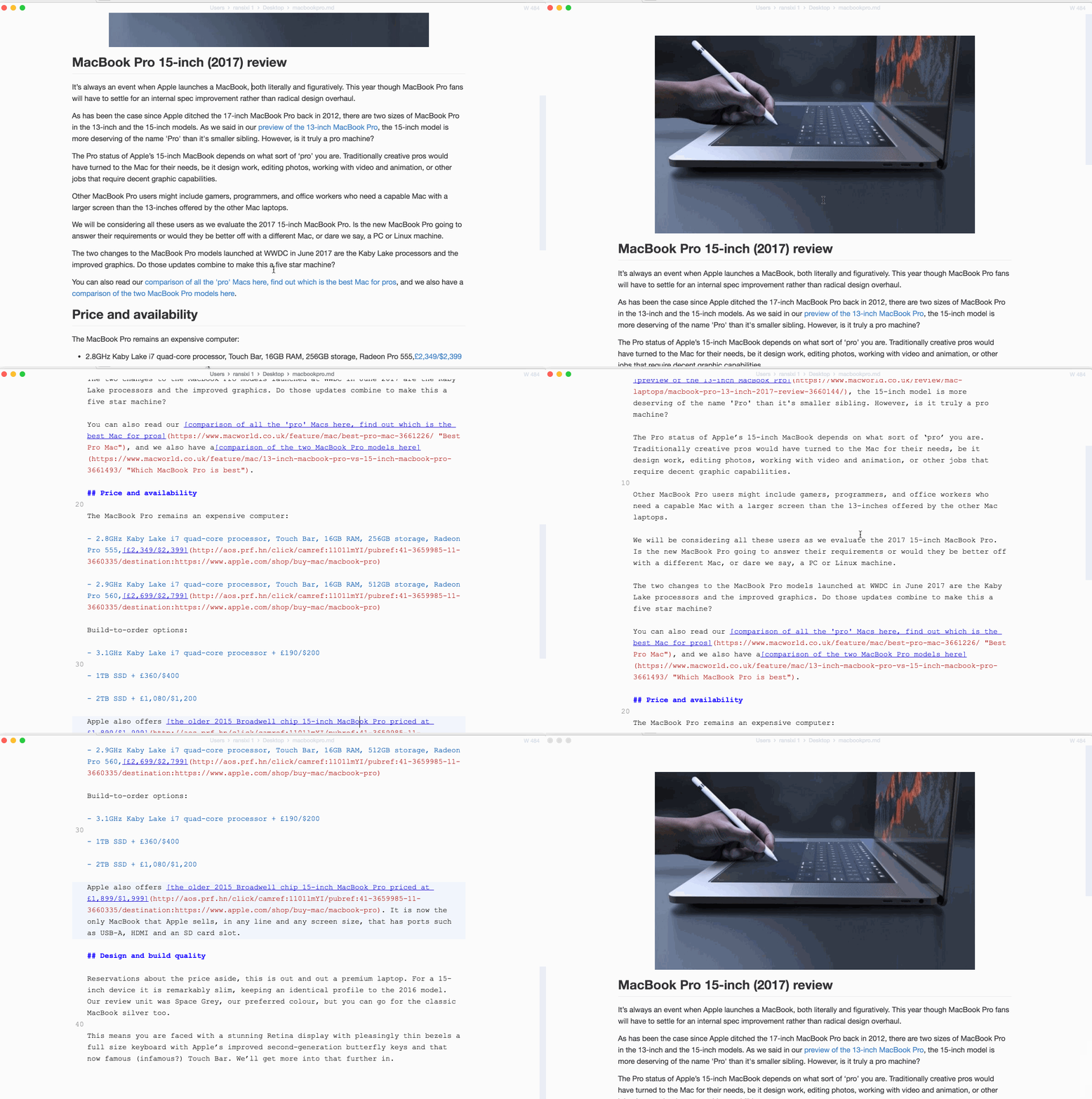
Use the View menu to switch between the WYSIWYG and source-code editor. The shortcut is Option+Command+S on macOS and Ctrl+E on Linux and Windows. The realtime preview editor is the default editor with many features. A detailed overview of all features can be found here.
Typewriter and focus mode
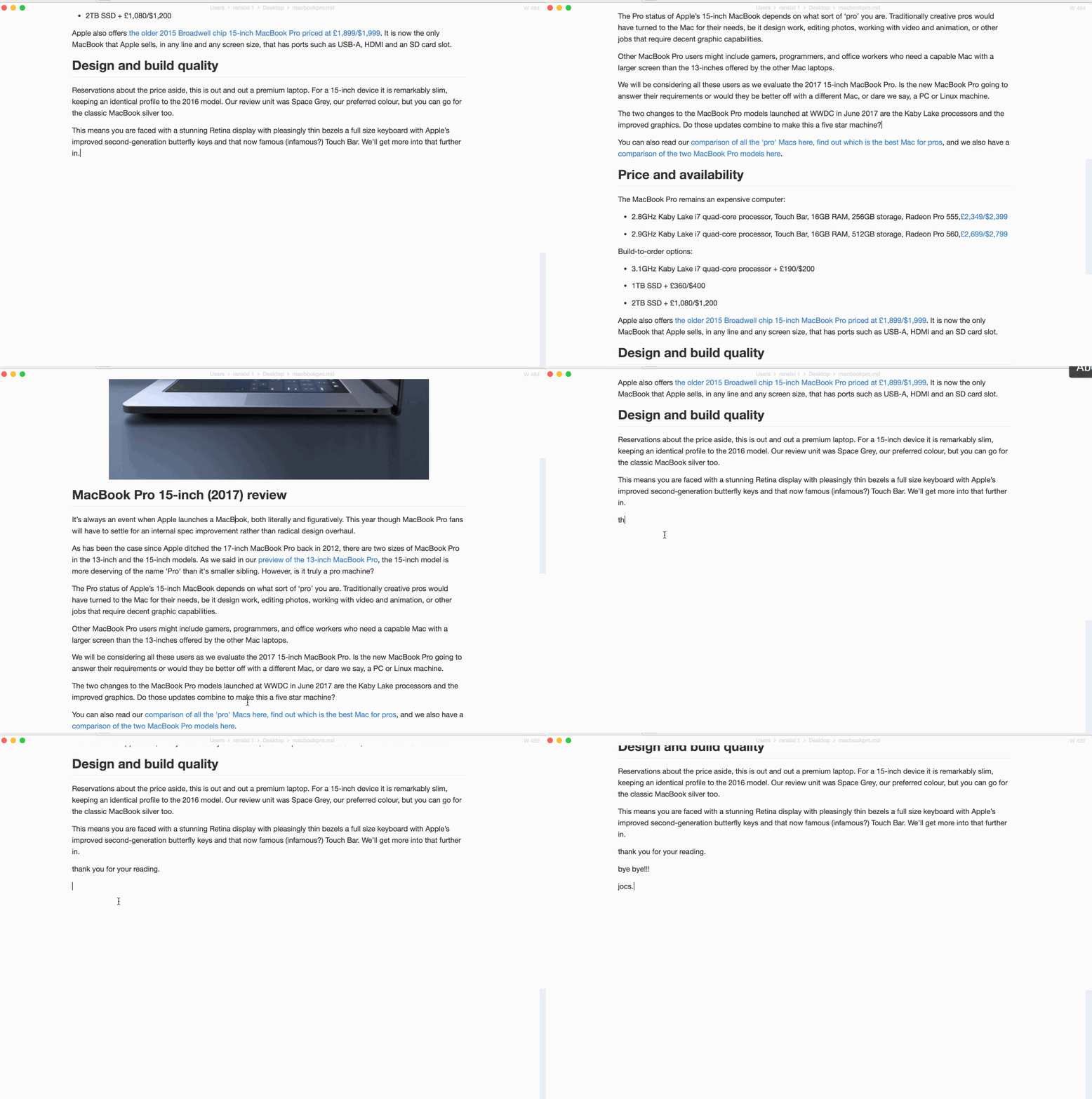
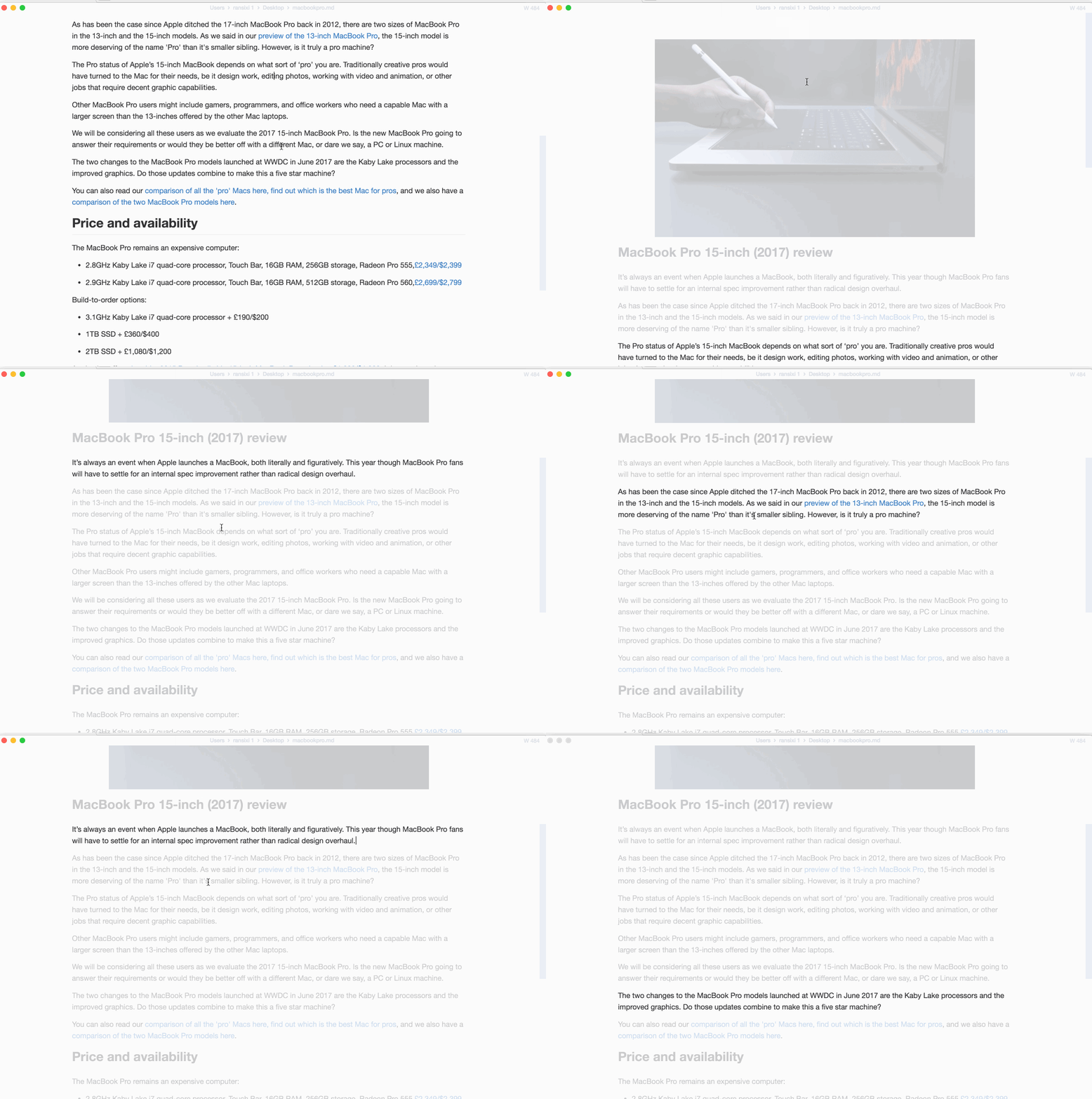
Use CmdOrCtrl+Shift+J for focus mode. Typewriter mode uses Option+Command+T on macOS and Ctrl+Shift+G on Linux and Windows.
:smile_cat:Edit modes:dog:
| Source Code | Typewriter | Focus |
|---|---|---|
 |  |  |
Open and modify markdown files
Open your first file
You can use the menu File -> Open File or press CmdOrCtrl+O to open a file dialog to choose a markdown file. Another way to is to launch MarkText with directories or files via command line.
Save your edited file
After some modifications you can save your file via CmdOrCtrl+S or use save as to use a different file name.
Open a directory
MarkText also has support to open a directory via CmdOrCtrl+Shift+O through the File menu. After opening a directory, the sidebar tree shows supported files and directories, subject to watcher exclusions. The tree view allows you to open further files, browse and modify files or directories inside the opened root directory. Opened files appear in a separate section above the folder tree. You can also use quick open (CmdOrCtrl+P) to quickly open a file from the opened root directory or editor and navigate via arrow keys or select a file via mouse. Quick open lists recently opened files first, followed by matching files from the opened folder. The File → Open Recent → Search Recent… menu opens a dedicated picker for recently opened files and folders (macOS: Control+R). Use the sidebar search control to find text in files.

Move files and folders
In the 0.24.0 development version, drag a file or subfolder onto another folder in the same sidebar root, then confirm the move. Drop onto the root's heading to move an item back to the root. Hover over a collapsed folder to expand it, or hold near the tree's upper or lower edge to scroll. Dropping onto a file moves the dragged item into that file's parent folder; the receiving folder is highlighted during the drag. Moving a folder includes all its contents, including resources hidden from the sidebar.
This changes the actual location on disk. Open documents keep their edits and save to the new path. Relative links and image paths are not rewritten and may need updating. Existing destination names are never intentionally replaced or merged. Close affected documents in other MarkText windows before moving them. Multiple selections, cross-root or cross-volume moves, linked paths, drag-to-copy and custom ordering are not supported by this interaction.
Preview tabs
Since 0.23.0, single-clicking a sidebar file opens it in a reusable preview tab by default. Opening another sidebar file replaces that preview. Double-click the file or edit its content to keep the tab open. Disable openFilesInPreviewMode under Preferences → General if every sidebar file should open in a regular tab.
Preview tabs describe how tabs are reused; the document's Reading Mode is a separate setting.
Multiple folders in one window
Multiple folder roots and the resizable Opened Files section are available in the 0.24.0 development version.
Use File → Add Folder…, the sidebar's plus button, or the command palette's Add Folder… command to add a folder to the current window. Each root has its own collapsible tree. Use a root's context menu to remove it from the sidebar; this does not delete the folder from disk. Session restoration can restore multiple roots and their collapsed directories. Unavailable roots can be retried from their context menu.
Find in files searches across available roots. When Opened Files is expanded and contains more than four tabs, drag the divider beneath it to adjust the section's maximum height.
Reading Mode
Since 0.23.0, Reading Mode applies to each document tab separately. Toggle it from the View menu or the switch in the title-bar document statistics popover. Use Control+Command+R on macOS or Ctrl+Alt+R on Linux and Windows.
Reading Mode allows selection, copying and navigation while preventing document edits. Enabling it keeps unsaved changes in memory and pauses autosave for that tab; return to Edit Mode to continue editing and saving. It does not change the file's permissions on disk.
Set defaultOpenMode in Preferences → General to read to open existing documents in Reading Mode by default. The CLI also accepts --read-only for a specific invocation.
Document statistics
Hover over the title-bar counter to see words, paragraphs, characters, and characters including spaces, along with file creation and modification times when available. With a selection, counts show the selection followed by the whole document. Click the counter to cycle the metric displayed in the title bar.
Themes
Follow System Theme is enabled on first launch. To choose a fixed theme from the Theme menu, disable Follow System Theme first. Alternatively, keep it enabled and choose the light and dark theme variants in Preferences → Theme.
Preferences
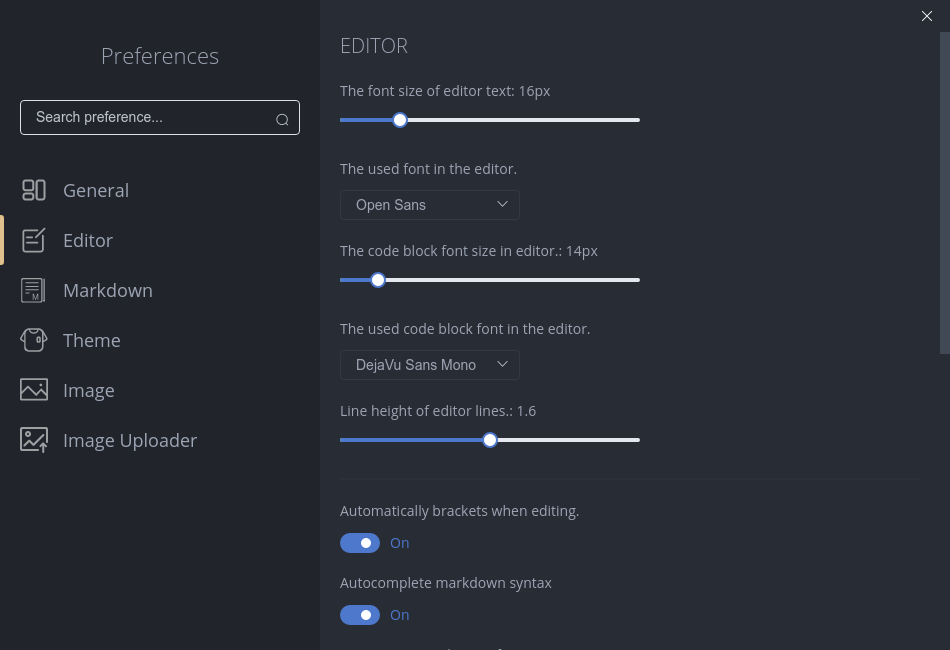
Use the settings window for exposed preferences, or edit preferences.json in the application data directory. Detailed information about the preference file can be found here.
- General application settings
- Settings that control the editor appearance
- Markdown related settings
- The application theme
- Options how images are handled