Interface#
Main interface
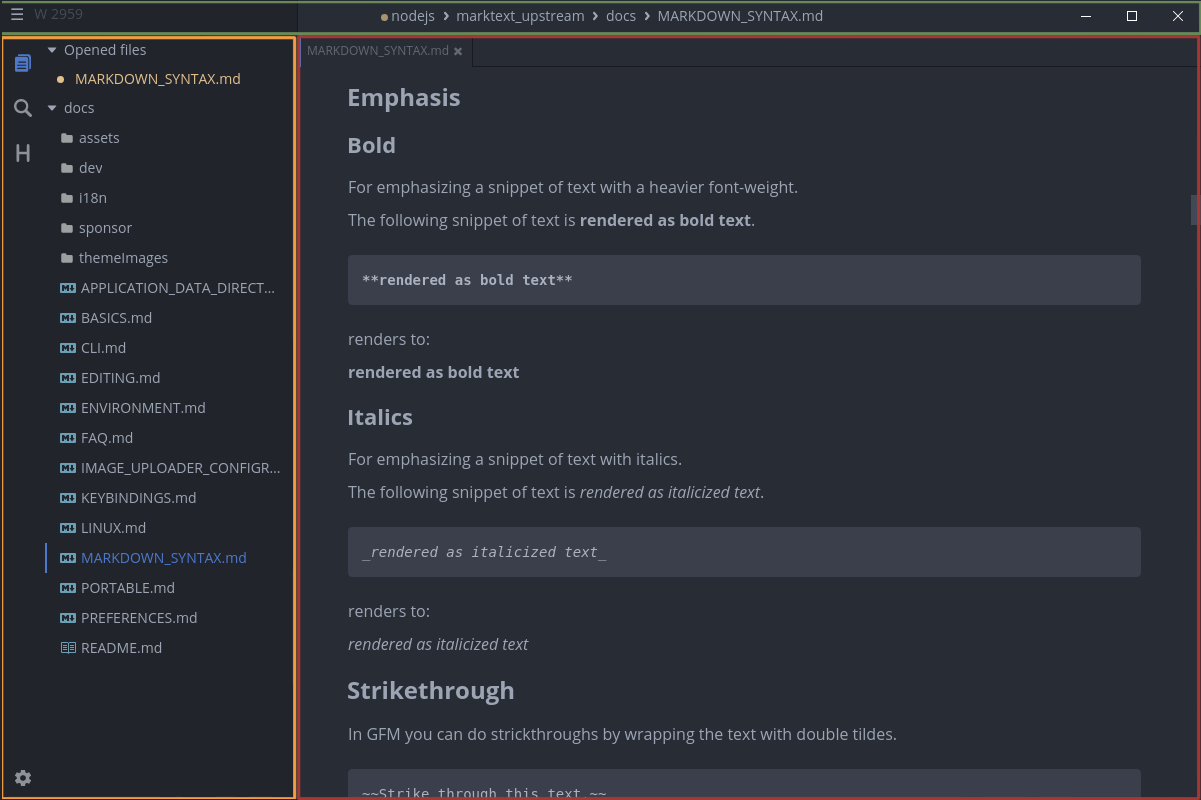
- Green: titlebar
- Orange: sidebar
- Red: editor with tabs and per-tab notification at the bottom
The editor window contains a title bar, an optional sidebar, optional tabs and the document editor. A separate outline panel navigates the active document's headings. Layout visibility is coordinated by packages/desktop/src/renderer/src/store/layout.ts.
Titlebar
The title bar shows document information and the statistics counter. Linux and Windows expose the application menu and window controls in the custom title bar; the titleBarStyle preference also offers native window decorations. macOS uses the hidden-inset title-bar configuration in packages/desktop/src/main/config.ts.
Sidebar
The optional, resizable sidebar contains the filesystem explorer and a find-in-files search powered by ripgrep. The explorer includes a collapsible Opened Files section (openedFilesInSidebar). In the 0.24.0 development version, it supports multiple folder roots, search across available roots, and a draggable divider below Opened Files.
The document outline is a separate panel, available since 0.23.0. When expanded it occupies a resizable column on the configured side of the editor; when collapsed its icon opens a floating preview on hover or focus. Outline width, position and expanded state are part of each window's layout in state/application-state.json; the tocPosition preference supplies the default side for new layouts. An empty state remains visible for documents without headings. The title-bar statistics popover shows document and selection counts, file timestamps and a per-tab Reading Mode switch.
Editor
The editor is the core element that hosts the realtime preview editor called Muya and consists of three parts. Tabs are located at the top and at the bottom the per-tab notification bar is located for events like file changed or deleted. The main part is the editor that is either provided by Muya or CodeMirror for the source-code editor. There are multiple overlays available like inline toolbar, emoji picker, quick insert or image tools. Hovering a rendered diagram, math block or HTML block shows a small toolbar in its top-right corner; for a diagram it also offers a view action that opens the diagram full-screen in the media viewer, which is shared with the image preview and adds zoom, pan and image export.
Editor shortcuts
The desktop main process handles command shortcuts. Muya menus display the active desktop bindings, including custom overrides and unbound commands.
Set keyboardShortcuts: false on InlineFormatToolbar and ParagraphQuickInsertMenu, and provide getShortcut(action) to both and ParagraphFrontMenu. Empty results hide the hint. Call muya.refreshShortcutHints() when bindings change. Clicks and slash-menu navigation remain enabled; standalone consumers can omit these options to retain defaults.
Recording, conflict checks and dispatch share the layout-aware KeyboardMapper in common/localShortcut. Retain the upstream MIT notices in packages/desktop/src/common/localShortcut/LICENSE when packaging.